
How to sell digital products on your own website
What you need, the four ways to set it up, and the steps for doing it on the site you already have.
To sell a digital product from a website you already have, you need five things: somewhere to present the product, a way to take payment, a way to deliver the file, emails and order records for each buyer, and a way to handle things like refunds and VAT, GST or sales tax where they apply.
There are four main ways to put those pieces together. You can build it yourself, use a full ecommerce system, use a hosted selling service, or add selling to the website you already have. This guide covers all four and then walks through the last one step by step. Pluribox, which publishes this guide, provides software that lets you add selling to the website you already have.
Published .
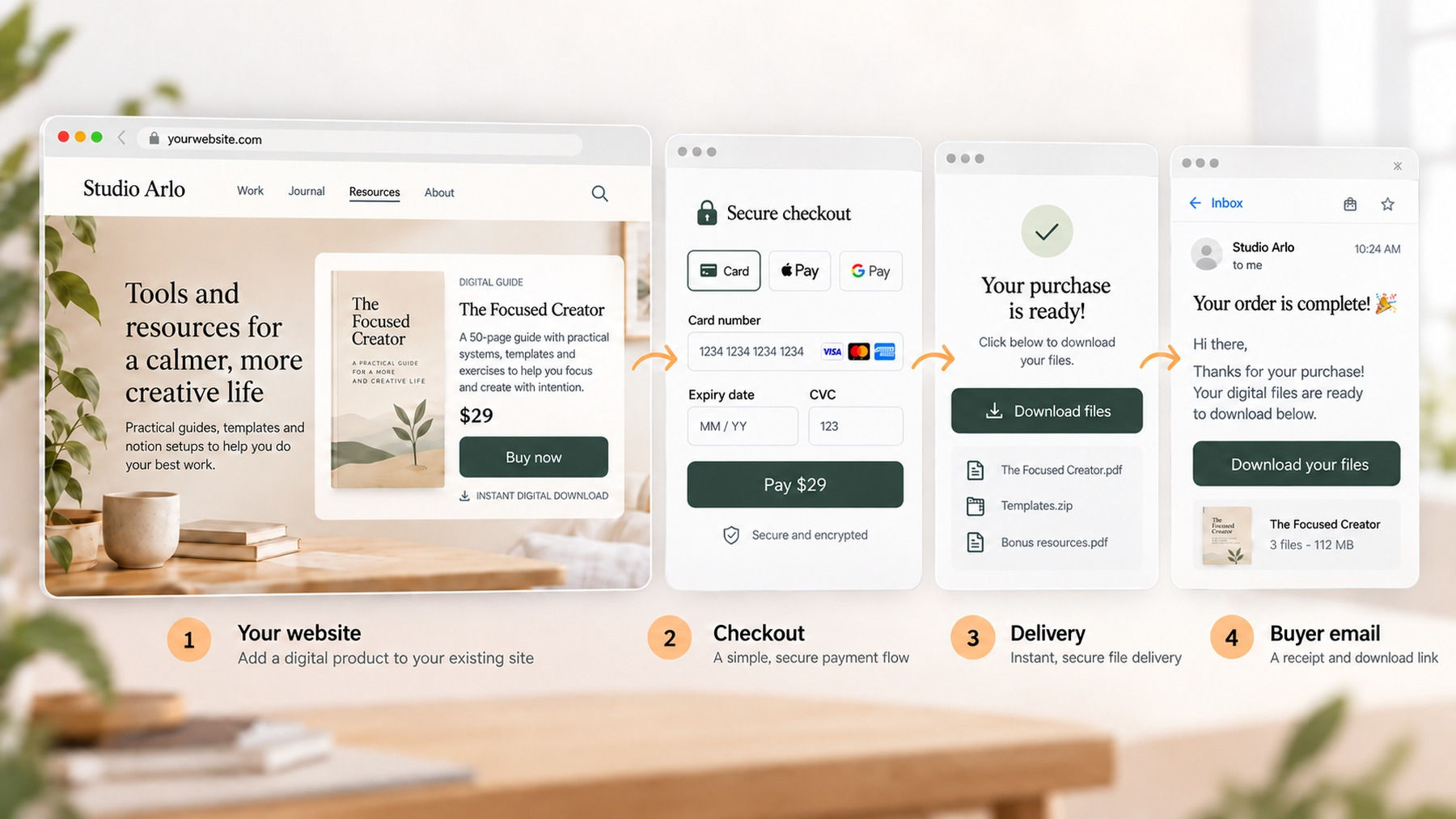
What you need to sell a digital product
Present the product
A page that says what it is, what the buyer gets, and what it costs.
Take payment
The buyer pays on your page, or from it.
Deliver the file
Each buyer gets their own download link once payment is confirmed.
Buyer emails and records
A receipt, the download instructions, and a record of every order.
Refunds and tax where applicable
Not a step in the sale, but something that sits alongside it: a way to handle refund requests, and VAT, GST or sales tax where they apply to you.
Somewhere to present it. The buyer decides on a page. It needs to say what the product is, what they get, and what it costs. If you already have a website, you have most of this already.
A way to take payment. The buyer needs to pay on your page, or from it. If you are the one making the sale, the money lands in your own payment account, such as a Stripe account. That account is also where refunds come from.
A way to deliver the file. A plain link that anyone can open and reuse gives you no control over who gets the file. Controlled delivery means each buyer gets their own link once their payment is confirmed. You can usually limit how many times it works, set an expiry, and resend it if the email goes missing.
Emails and records. Soon after they pay, the buyer should get a receipt and the download instructions. Those emails should come from a properly set up domain, or mailbox providers may reject them or send them to spam. On your side, you want a record of every order and buyer that you can open and export.
Refunds and tax, where they apply. You need a simple way to handle refund requests. Consumer rules in your country may also give buyers certain rights, and the rules for digital products can differ from those for physical goods. VAT, GST or sales tax may apply to some of your sales. It depends on where you are, where your buyers are, whether they are businesses, and your own situation. Not every seller has to charge it from day one, and sales to businesses can be treated differently.
Four ways to set it up
Build it yourself. A payment link or button from your payment provider, a file stored somewhere online, an email service to send the link, and a spreadsheet to track sales. The software can cost very little. The setup and the upkeep are yours, and how well it works depends on how well you connect the pieces.
Use a full ecommerce system. Move your site onto a store system, so products, checkout, delivery and records live in one place. These systems often do far more than a seller of a few downloads needs. Your site either becomes the store or gets a store added next to it. When a store is added next to an existing site, the store section can sometimes look or feel different from the rest of the site. Matching the design usually takes extra work. In many setups you stay the seller and use your own payment account, but the details depend on the system.
Use a hosted selling service. The service runs the selling and checkout for you, on its own pages or as a checkout it places on yours. Depending on the service, you may still be the one making the sale, or the service may sell to the customer itself. That difference matters, and the short section on who handles the sale explains it.
Add selling to the website you already have. The selling software gives you a small block of embed code. You place it on your page where the product should appear, and the checkout, delivery and buyer emails come with it. Your site keeps its design and pages. In the direct version of this route, you stay the seller, payments go to your own account, and your records stay yours. Not every product in this group works the same way, so check how the one you choose is set up.
On a small screen, scroll the table sideways to compare the four routes.
| Dimension | Build it yourself | Full ecommerce system | Hosted selling service | Add selling to your existing site |
|---|---|---|---|---|
| What happens to your existing website | It stays as it is. You add a payment button or link to it yourself. | It becomes the store, or a store is added next to it. | It stays as it is. You add a link to the service, or the service places a checkout on your page. | It stays as it is. You add a small block of embed code where the product should appear. |
| Checkout | Set up by you, often on a separate payment page. | The store system's own checkout. | The service's checkout, on its pages or on yours. | Opens on your own page, styled by the selling software. |
| File delivery | Set up by you. | Handled by the store system. | Handled by the service. | Handled by the selling software. |
| Who usually makes the sale | You. | Usually you; depends on the system. | Often the service; depends on the arrangement. | Usually you; depends on the software. |
| When this approach may make sense | You sell one or two products now and then, and you are happy to set things up yourself. | You want one system for everything, and you are happy for your site to become a store. | You want a service to run the selling for you, and you are happy with its terms. | You have a website and an audience, and you want to keep both as they are. |
How to add selling to the website you already have
These steps work for any selling software that adds selling to an existing site.
1. Prepare the product. Get the file ready, choose a name and a price, and decide what you need from the buyer. An email address is the minimum. If tax may apply, you may also need their location, and business buyers may need to give their business tax details.
2. Set up payments. If you are the seller, open your payment account and connect it to the selling software. Before it can take real payments, the account will ask for your business details and a way to pay you out.
3. Create the product and checkout. Upload the file, set the price, and choose the buyer details you need. The software builds the checkout for you.
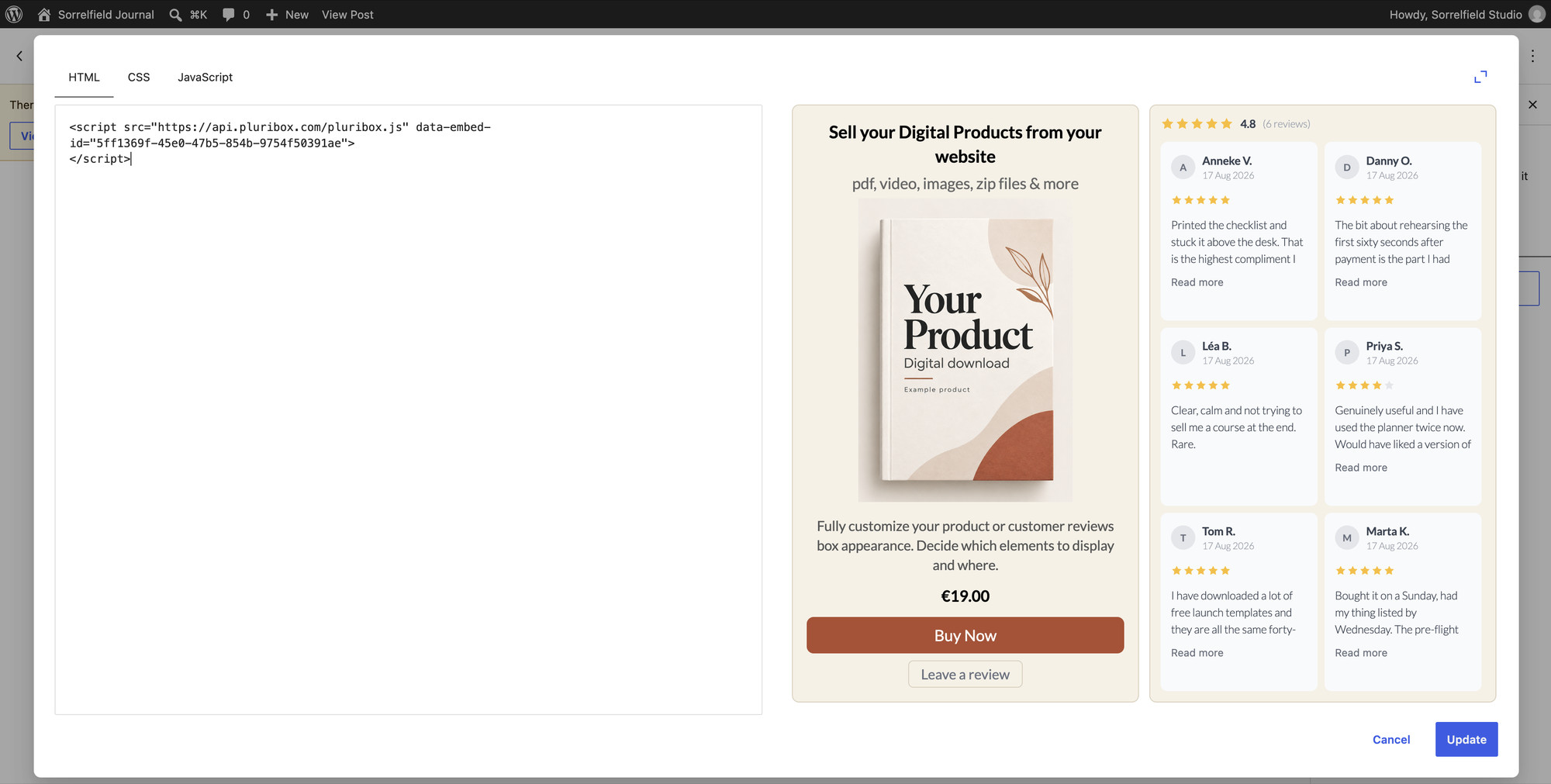
4. Add it to your website. The selling software gives you a small block of embed code. This is a few lines of text that you place on your website where the product, button or other element should appear. How you add it depends on how your website was built.
If your site is hand-coded, add the embed code directly to the right part of the page.
If you use a visual website builder, on your desktop or online, look for its custom HTML, custom code or embed feature. Paste the embed code there, in the spot where you want the selling element to appear.
If an AI coding assistant or an AI website builder is building your site, give it the embed code. Ask it to place the code in the right part of the page, then preview and test the result.
The one thing to check is that your website, or the plan you are on, allows custom code or embeds. Some plans do not.
5. Test it properly. If your payment account or selling software has a test or sandbox mode, use it first. It lets you run through the whole checkout with test card details, without moving real money, and catches obvious problems early. Before launch, make one small real purchase with a real card. That is the best final check, because it shows you exactly what a buyer will see: the checkout, the confirmation, the email and the download. Then refund it, so you have tested the refund path too.
6. Set your delivery rules. Decide how many downloads a link allows, when it expires, how a buyer gets a new one, and what your receipt and download email say.
- How many downloads each link allows
- When the link expires
- How a buyer gets a new link if theirs stops working
- What the receipt says
- What the download email says, and who it comes from
7. Check it on a phone. Open the page on your phone, buy again if you can, and read the email there. Many buyers will arrive from a shared link on their phone.
8. Add the extras when you are ready. Verified customer reviews, Forms and email capture with consent. None of these are needed to make a sale. They help with trust and follow-up once selling works.
A quick note on who handles the sale
In a direct-selling setup, you sell in your own name and payments go through your own payment account.
Some hosted services take a bigger role. They may sell to the customer themselves, or act as what is called the merchant of record. That means the service is the business the payment is officially made to. It changes who handles parts of the payments, refunds and any VAT, GST or sales tax that applies.
Selling directly does not mean working all of this out by hand. Payment and tax software can do much of it for you. For example, Stripe Tax can calculate tax where you have enabled it, and it currently monitors your sales against tax-registration thresholds and alerts you if action is needed.
Your own situation matters too. In some places, smaller sellers may qualify for thresholds or exemptions, and sales to businesses can be treated differently.
Neither model is automatically better. They are different ways to organise the sale. We will cover merchant of record properly in a separate guide.
Things to check before launch
- A test purchase worked, first in test mode if you have it, then with one small real payment.
- The buyer received their own download link, and the link behaved the way you set it to.
- The receipt and download emails arrived, from a properly set up domain, and did not land in spam.
- The embed code shows up correctly on your page, and your website builder has not removed it.
- Everything works on a phone as well as on a desktop.
How Pluribox handles this
Pluribox provides software that lets you sell digital products from the website you already own. With Pluribox, you stay the seller.
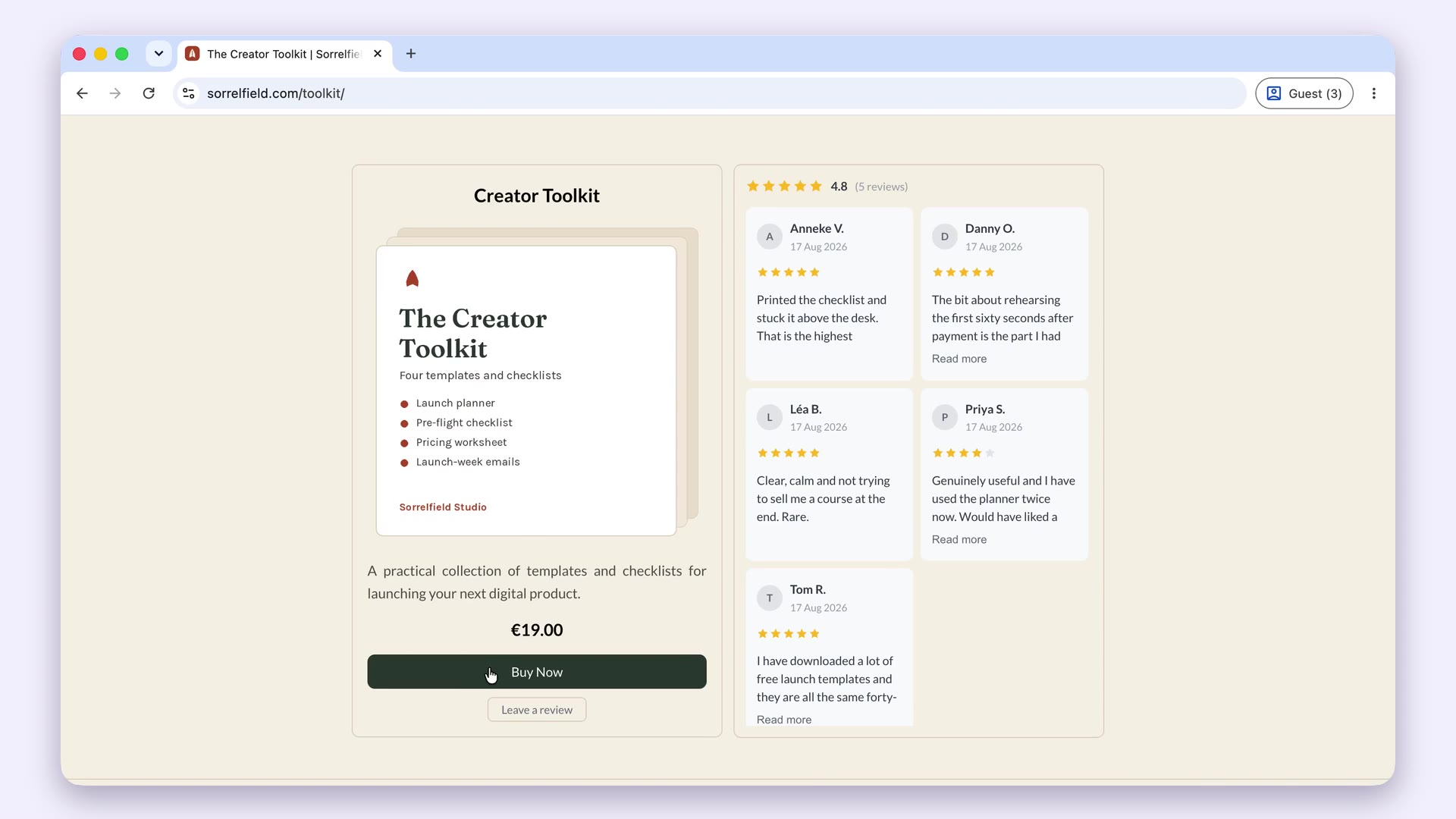
You create a Product once, then place Boxes on your pages. A Full Product Box shows the product, price and buy button. A Button Box is just the button, for a page that already explains the product. A Reviews Box shows the verified customer reviews on their own. Product details and reviews stay in sync wherever that Product appears.
Checkout opens on your own page, and payment goes to your connected Stripe account. Each buyer gets their own download link, with a limit you set, an expiry and a resend option. Buyers get order and download emails with your branding, along with receipts and invoices, and you can export your buyers and sales at any time.
Verified customer reviews, signup and contact Forms, and email capture are also built in. Review Incentives are available on eligible plans.
You sell in your own name. Pluribox does not become the merchant for your Products; the About page explains what that means. If you opt to enable tax calculation in your Stripe account, Pluribox passes the buyer's details into it. Where a business buyer provides business tax details, those are passed along too, so business sales follow the rules you have set up there.
Pluribox is currently in pre-launch, and the Founding Cohort is open. There is a Free plan and two paid plans; the details are on the pricing page.
Join the Founding Cohort
Pluribox is currently in pre-launch. Founding members receive priority early access in controlled invitation waves and the opportunity to secure protected launch pricing when they activate a paid plan within their invitation period.
Join the Founding CohortFrequently asked questions
Can I sell digital products on my website without building an online store?
Yes. A store is one way to organise selling, not a requirement. The five things a sale needs can all be handled without turning your site into a store.
How do I deliver a digital product automatically after payment?
Most selling software waits for the payment to be confirmed, then sends the buyer their own download link by email, along with a receipt. You can usually set a download limit and an expiry, and let buyers request a new link. The details vary by product.
Do I have to charge VAT, GST or sales tax on digital products?
Not necessarily. Whether you need to charge VAT, GST or sales tax depends on where you and your buyers are, the type of buyer, and the rules that apply to your business. Some smaller sellers may fall below registration thresholds or qualify for exemptions, while other situations can create an obligation sooner. Tax software can help: for example, Stripe Tax can calculate tax where it is enabled, monitor your sales against registration thresholds, and alert you if action is needed. This is not tax advice, so check anything specific with someone who knows your situation.
Can I add selling to a website I already built?
In many cases, yes. The main thing is that your website, or the plan you are on, lets you add custom code or embeds. On a hand-coded site, you add the embed code directly. In a visual website builder, you use its custom HTML, custom code or embed feature where the builder supports one. If an AI coding assistant or AI website builder built your site, give it the embed code and ask it to add it in the right place. Exact support varies between builders and plans, and Pluribox is testing specific builders separately.
Published . Related: About Pluribox and Pricing.